How to Use AppBuildChat: From a Simple Chat to a Working App
From target analysis and feature definition to screen generation and PRD creation — all automated from a single idea you type in.
Posted by: Bart Anderson
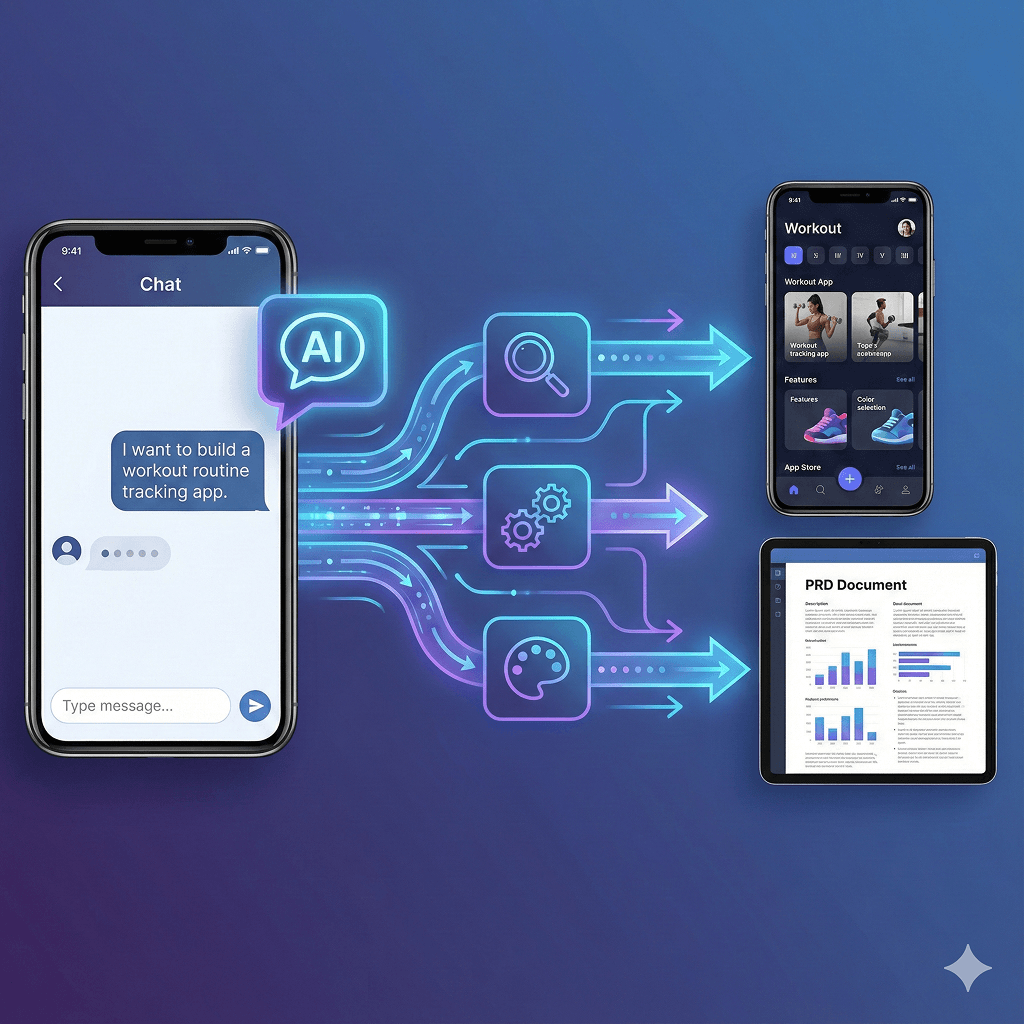
- How AppBuildChat Works
When a user types an idea such as “I want to build a workout routine tracking app,” AppBuildChat analyzes the sentence for:
• the purpose of the service
• the feature intent behind the idea
• the target user group
It then compares the idea against patterns from similar apps to suggest additional features. Users can remove or keep items from this list, naturally clarifying the core value of the service.
Next, AppBuildChat guides users through selecting the app’s visual style. Once colors and tones are chosen, it automatically generates two core reference screens (typically the home screen and a key feature screen). These screens help users visualize what their service might look like.
- Step-by-Step Guide to Building an App with AppBuildChat
Step 1. Input Your Idea
• Type any app concept into the chat — even a single sentence is enough.
Step 2. Review Target Analysis & Feature Suggestions
• AppBuildChat interprets the idea and suggests features based on category patterns.
• Select what you need and remove what you don’t.
Step 3. Choose Your Visual Style
• Pick a color theme and UI tone. This determines the first impression and the general brand direction.
Step 4. Review Automatically Generated Key Screens
• The system creates reference screens (home + core feature).
• You begin to see your app take shape visually.
Step 5. Let AI Draft Expand the Entire Structure
• Navigation paths, feature flows, UI components, and basic interactions are auto-generated.
Step 6. Human QA Layer Review
• A human operator interacts with the generated flow to:
• validate the screen sequence
• refine unnecessary UI
• ensure the core feature behaves as intended.
This adds a level of polish that pure automation cannot achieve.
Step 7. PRD Generation
A complete PRD is automatically created, including:
• feature descriptions
• UX flows
• screen-to-screen connections
• state transitions
• input/output specs
• policies and edge cases
Whenever you modify features, the PRD updates automatically.
- Key Features of AppBuildChat
• Automated Target Analysis
Understands your idea’s intent, purpose, and user group.
• Feature Suggestion Engine
Proposes feature sets based on similar apps.
• Visual Style Guidance
Helps define the brand mood of your app.
• Key Screen Auto-Generation
Immediately produces home and core feature screens.
• Full App Structure Drafting
Creates navigation, interactions, and layout automatically.
• Human QA Layer
Ensures the generated app feels natural and user-friendly.
• Auto-Updating PRD
Provides a complete, always-up-to-date product requirements document.
- FAQ
Q1. Do I need planning or design experience to use AppBuildChat?
No. AppBuildChat turns simple ideas into full app structures automatically, making it accessible for beginners.
Q2. Can I edit the features after generation?
Yes. When you add or remove features, the PRD is updated automatically.
Q3. Why does the Human QA Layer matter?
It provides human-level refinement, ensuring that the app’s flow, UI choices, and core features match user intent.
Q4. Can I see what my app looks like early in the process?
Yes. AppBuildChat generates reference screens immediately after style selection.